TL;DR
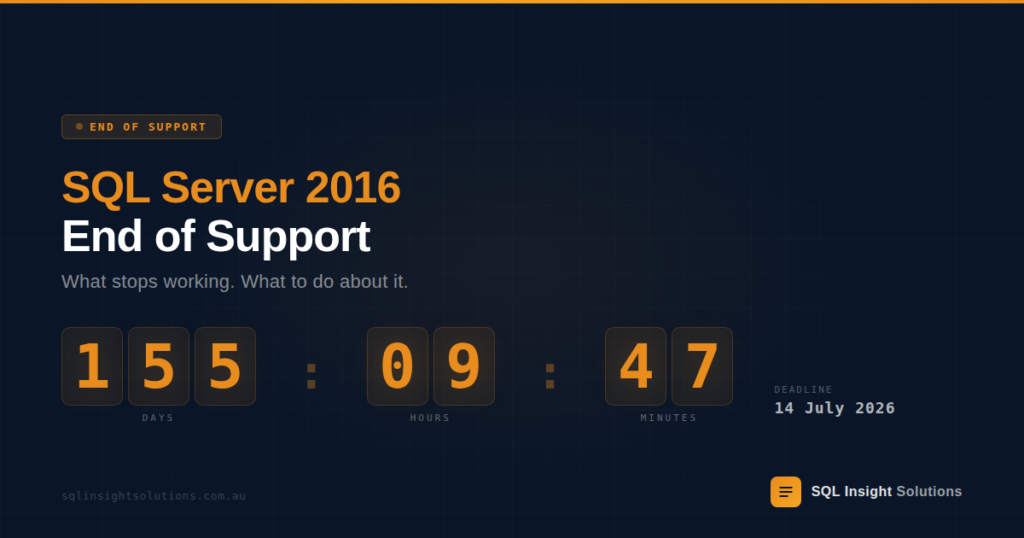
- Microsoft ends all extended support for SQL Server 2016 on 14 July 2026. After that date, no security patches, no bug fixes, no technical support — even if you pay for it.
- 79 CVEs were published against SQL Server 2016 in 2024 alone, with an average CVSS score of 8.4 in 2025. Without patches, every future vulnerability stays permanently open.
- Deprecated features including SQL Server Profiler, text/ntext/image data types, RC4 encryption, and legacy compatibility levels will block or complicate upgrades if not addressed now.
- Extended Security Updates (ESUs) cost ~75% of your original licence per year, double annually, and only cover critical security patches — no features, no performance fixes, no bug fixes.
- The most cost-effective path is to start planning your upgrade to SQL Server 2022 or Azure SQL now, while you still have time to test, migrate, and roll back safely.
The Problem in the Wild
Here’s a scenario we see regularly across Australian mid-market companies.
Your SQL Server 2016 instances have been running reliably for years. The databases are stable. The applications work. Nobody’s complaining. So why touch it?
Then the 14 July 2026 deadline passes, and this is what happens in the weeks and months that follow:
Your vulnerability scanner flags every SQL Server instance as “unsupported software — critical risk.” Your PCI-DSS or ISO 27001 auditor marks the finding as non-compliant. A new CVE drops — a privilege escalation flaw rated 8.8 on the CVSS scale — and there’s no patch coming. Your cyber insurance provider asks you to confirm all production databases run on supported platforms. And that third-party application vendor you’ve relied on for years quietly drops SQL Server 2016 from their compatibility matrix.
None of these happen with a bang. They accumulate silently until one of them becomes a crisis.
This isn’t hypothetical. In November 2025, CVE-2025-59499 — an elevation-of-privilege vulnerability affecting SQL Server 2016 through 2022 — was disclosed with a CVSS score of 8.8. An attacker with low privileges could escalate to sysadmin by crafting a malicious database name. Microsoft patched supported versions. If your SQL Server 2016 is unsupported when the next one like this lands, there is no patch.
What’s Going On Under the Hood: The Support Lifecycle Explained
SQL Server 2016 follows Microsoft’s Fixed Lifecycle Policy. Here are the key dates:
| Milestone | Date | What Ended |
|---|---|---|
| General Availability | 1 June 2016 | — |
| End of Mainstream Support | 13 July 2021 | Feature updates, warranty claims, non-security bug fixes |
| End of Extended Support | 14 July 2026 | All security updates, technical support |
| End of ESU (if purchased) | ~July 2029 | Critical security patches only (paid) |
After 14 July 2026, Microsoft will not release any updates for SQL Server 2016 — not even for critical zero-day vulnerabilities — unless you purchase Extended Security Updates (ESUs). And ESUs themselves expire after three years with escalating costs.
Source: Microsoft Lifecycle — SQL Server 2016
Deprecated and Discontinued Features You Need to Address
This is the part most organisations miss. It’s not just about the support deadline — it’s about the technical debt buried inside your SQL Server 2016 instances that will actively block or break an upgrade when you finally attempt one.
Features Already Discontinued in SQL Server 2016
These were removed in SQL Server 2016 itself. If you upgraded to 2016 from an older version and still rely on any of these, they’re already gone:
| Feature | Impact | What to Use Instead |
|---|---|---|
| 32-bit installation | 2016 is 64-bit only | Migrate to 64-bit OS |
| Compatibility level 90 (SQL Server 2005) | Databases at compat 90 won’t attach | Raise to compat level 100+ before upgrade |
| ActiveX subsystem (SQL Agent) | Job steps using ActiveX scripts fail | Rewrite as PowerShell or CMD scripts |
Features Deprecated in SQL Server 2016 (Still Work, But Will Be Removed)
These features still function on SQL Server 2016, but Microsoft has flagged them for removal in future versions. If you upgrade to SQL Server 2022 or later without addressing these, you risk code failures, broken maintenance jobs, and audit findings.
| Deprecated Feature | Risk Level | Replacement |
|---|---|---|
| SQL Server Profiler (for Database Engine tracing) | High — most DBAs still use this daily | Extended Events (XEvents) |
| text, ntext, image data types | High — common in legacy apps | varchar(max), nvarchar(max), varbinary(max) |
| RC4 / RC4_128 encryption | Critical — security weakness | AES encryption (AES_256) |
| MD2, MD4, MD5, SHA, SHA1 hashing | Critical — collision-vulnerable | SHA2_256 or SHA2_512 |
Remote servers (sp_addremotelogin, etc.) | Medium | Linked servers |
| Numbered stored procedures | Low–Medium | Standard named stored procedures |
| DBCC SHOWCONTIG | Medium — common in maintenance plans | sys.dm_db_index_physical_stats |
String literals as column aliases (without AS) | Low | Use AS keyword explicitly |
Table hints without WITH keyword | Low–Medium | Add WITH to all table hints |
| SET ANSI_NULLS OFF / QUOTED_IDENTIFIER OFF | Medium — code reliance varies | Set both to ON (future mandatory default) |
| Compatibility levels for last two versions only | High — legacy app risk | Test and raise compat level before upgrade |
| Backup/restore with media password | Low | Remove media password from backup scripts |
| vardecimal storage format | Low | Migrate to standard decimal |
| SQLMaint utility | Medium | SQL Server Maintenance Plans |
How to Find Deprecated Feature Usage Right Now
Run this query on every SQL Server 2016 instance to identify exactly which deprecated features are in use:
-- Find deprecated features currently in use (since last SQL restart)
SELECT
    OBJECT_NAME AS [Counter Object],
    instance_name AS [Deprecated Feature],
    cntr_value AS [Usage Count Since Restart]
FROM sys.dm_os_performance_counters
WHERE OBJECT_NAME LIKE '%Deprecated Features%'
    AND cntr_value > 0
ORDER BY cntr_value DESC;
Note: This DMV resets on service restart, so run it on instances that have been up for a meaningful period. Requires VIEW SERVER STATE permission.
For a more targeted check on your T-SQL code, use the Data Migration Assistant (DMA) — Microsoft’s free tool — which scans databases and flags deprecated features, breaking changes, and compatibility issues for your target upgrade version.
# Download and install DMA from:
# https://learn.microsoft.com/en-us/sql/dma/dma-overview
# Then run an assessment against your target version (e.g., SQL Server 2022)
What Happens If You Do Nothing: Critical Business Risks
Let’s be direct. Here’s what organisations that take no action before 14 July 2026 face:
1. Unpatched Security Vulnerabilities — Permanently
SQL Server 2016 had 79 published CVEs in 2024 and 8 in 2025 so far, averaging CVSS 8.4 (High severity). After end of support, every future CVE goes unpatched forever.
In July 2025, CVE-2025-49719 was disclosed — a remote memory leak vulnerability allowing unauthenticated attackers to extract connection strings, credentials, and schema information by sending crafted packets to port 1433. No user interaction required. Versions from SQL Server 2016 through 2022 were affected. Microsoft patched it for supported versions. Once your SQL Server 2016 is out of support, vulnerabilities like this become permanent fixtures in your environment.
2. Compliance Failures and Audit Findings
Running unsupported database software triggers findings under virtually every major compliance framework:
| Framework | Requirement | Impact of Unsupported SQL Server |
|---|---|---|
| PCI-DSS (v4.0) | Requirement 6.3.3 — Install critical security patches within one month | Automatic fail — no patches available |
| ISO 27001 | A.8.8 — Management of technical vulnerabilities | Non-conformity finding |
| Essential Eight (ACSC) | Patch applications within 48 hrs (extreme) to 1 month | Cannot meet requirement |
| APRA CPS 234 | Maintain information security capability | Material weakness |
| SOX (IT controls) | General IT controls over financial reporting systems | Deficiency or material weakness |
For Australian organisations subject to APRA prudential standards or the Essential Eight maturity model, running an unsupported database platform is a compliance gap that auditors will not overlook.
3. Cyber Insurance Exclusions
Insurers are increasingly scrutinising the technology stack. Running end-of-life software may void coverage for data breach incidents or significantly increase premiums. If your insurer asks “are all production databases running on vendor-supported platforms?” and the answer is no, you have a problem.
4. Third-Party Vendor Compatibility Erosion
Application vendors, driver providers, and middleware platforms test against supported SQL Server versions. Over time after end of support, you’ll encounter situations where new driver versions, application updates, or OS patches break compatibility and there’s no fix from Microsoft’s side.
5. Escalating Technical Debt
Without access to cumulative updates, non-security bug fixes, or performance improvements, your SQL Server 2016 instances will quietly fall behind. Query plan regressions, memory grant issues, and tempdb contention problems that are solved in newer versions remain permanent pain points.
Step-by-Step: Your Upgrade Playbook
Step 1: Inventory Every SQL Server 2016 Instance
You can’t upgrade what you haven’t found. Run this across your environment:
-- Get SQL Server version, edition, and instance details
SELECT
    SERVERPROPERTY('MachineName') AS [Machine Name],
    SERVERPROPERTY('InstanceName') AS [Instance Name],
    SERVERPROPERTY('ProductVersion') AS [Version],
    SERVERPROPERTY('ProductLevel') AS [Service Pack],
    SERVERPROPERTY('Edition') AS [Edition],
    SERVERPROPERTY('ProductUpdateLevel') AS [CU Level],
    @@VERSION AS [Full Version String];
Document every instance: server name, edition (Standard/Enterprise), core count, databases hosted, application dependencies, and current compatibility level.
Step 2: Run the Data Migration Assistant (DMA)
DMA scans your databases and reports:
- Breaking changes — code that will fail on the target version
- Behaviour changes — code that may produce different results
- Deprecated features in use — features you need to replace before or after upgrade
Run DMA against your target version (SQL Server 2022 recommended) and export the report for each database.
Step 3: Check and Record Compatibility Levels
-- Check compatibility level of every database
SELECT
    name AS [Database],
    compatibility_level AS [Compat Level],
    CASE compatibility_level
        WHEN 100 THEN 'SQL Server 2008'
        WHEN 110 THEN 'SQL Server 2012'
        WHEN 120 THEN 'SQL Server 2014'
        WHEN 130 THEN 'SQL Server 2016'
        WHEN 140 THEN 'SQL Server 2017'
        WHEN 150 THEN 'SQL Server 2019'
        WHEN 160 THEN 'SQL Server 2022'
    END AS [Equivalent Version]
FROM sys.databases
WHERE database_id > 4  -- Exclude system databases
ORDER BY compatibility_level ASC;
Critical point: Databases at compatibility level 100 or below cannot be directly upgraded to SQL Server 2022. You must raise them to at least compatibility level 110 before migration. Plan for application testing at each level increment.
Step 4: Choose Your Upgrade Path
| Option | Best For | Timeline | Cost Profile |
|---|---|---|---|
| SQL Server 2022 (on-prem) | Organisations wanting to stay on-prem with modern features | 3–6 months | Licence upgrade (free with SA, or new purchase) |
| SQL Server 2025 (on-prem) | Organisations wanting the latest platform with AI capabilities | 3–6 months | New licence required |
| Azure SQL Managed Instance | Lift-and-shift with minimal code changes | 4–8 months | Pay-as-you-go or reserved; free ESUs in Azure |
| Azure SQL Database | Modern apps, serverless workloads | 6–12 months | Pay-as-you-go; requires more app refactoring |
| ESU (bridge only) | Buying time for a funded migration plan | Immediate | ~75% of licence cost/year; doubles annually |
Decision tree:
- Do you have Software Assurance? → Upgrade to SQL Server 2022 at no additional licence cost.
- Is cloud migration on the roadmap? → Azure SQL Managed Instance gives you free ESUs during migration and reduces infrastructure overhead.
- No SA and no cloud plans? → Purchase new SQL Server 2022 licences. The cost is lower than 3 years of ESU.
- Need more time? → Purchase ESU Year 1 as a bridge, but only with a funded, time-bound migration plan.
Step 5: Test in a Staging Environment
Before any production upgrade:
- Restore production backups to a staging instance running your target version.
- Enable Query Store on the staging instance to capture baseline query plans.
- Run your application’s full workload (or a representative sample) against staging.
- Compare query performance using Query Store’s “Regressed Queries” report.
- Validate all application functionality — login, reporting, integrations, scheduled jobs.
-- Enable Query Store on staging (SQL Server 2016+ target)
ALTER DATABASE [YourDatabase] SET QUERY_STORE = ON
(
    OPERATION_MODE = READ_WRITE,
    MAX_STORAGE_SIZE_MB = 1024,
    QUERY_CAPTURE_MODE = ALL,
    WAIT_STATS_CAPTURE_MODE = ON
);
Step 6: Execute the Upgrade with a Rollback Plan
- Take full backups of every database and system database before starting.
- Document current SQL Agent jobs, linked servers, SSIS packages, and logins.
- Perform the upgrade (in-place or side-by-side migration).
- Validate using your test checklist.
- Keep the old environment available for at least 2 weeks post-upgrade as a rollback target.
Cost/Risk Angle: The Real Maths
Let’s compare the cost of doing nothing against the cost of upgrading, for a typical mid-market environment with a single 8-core SQL Server 2016 Standard instance.
| Scenario | Year 1 | Year 2 | Year 3 | 3-Year Total |
|---|---|---|---|---|
| ESU only (Standard, 8 cores) | ~$5,400 | ~$10,800 | ~$21,600 | ~$37,800 |
| Upgrade to SQL Server 2022 Standard (with SA) | $0 (SA benefit) | $0 | $0 | $0 (licence) + migration effort |
| Upgrade to SQL Server 2022 Standard (no SA, new purchase) | ~$7,200 (4 × 2-core packs) | $0 | $0 | ~$7,200 + migration effort |
| Do nothing (unpatched) | $0 direct | $0 direct | $0 direct | Unquantified risk — breach, audit failure, insurance gaps |
Estimates based on published Microsoft ESU pricing models and 2024/2025 SQL Server Standard per-core list pricing. Actual costs vary by licensing agreement and region.
The maths are stark: three years of ESU costs more than five times the cost of a new SQL Server 2022 Standard licence — and ESU gives you nothing but critical security patches. No performance improvements, no new features, no non-security bug fixes, no Microsoft support incidents.
Common Traps and How to Avoid Them
Trap 1: “It still works, so we’ll wait.”
The system running doesn’t mean the system is safe. Every month post-EOS, your attack surface grows while your patching capability is zero.
Trap 2: Purchasing ESU without a migration plan.
ESU buys time. But without a funded, time-bound upgrade plan, it becomes the most expensive form of procrastination in your IT budget.
Trap 3: Attempting a direct upgrade without running DMA first.
In-place upgrades can fail silently when deprecated features are in use. A database using text data types or compatibility level 90 will behave differently — or break — after upgrade. Run DMA before you touch production.
Trap 4: Upgrading the database engine but not raising the compatibility level.
You can run SQL Server 2022 with databases at compatibility level 130 (SQL Server 2016). This is a valid transitional step, but you miss out on critical query optimiser improvements including Intelligent Query Processing, Parameter Sensitive Plan Optimisation, and Memory Grant Feedback. Plan to raise compat levels as part of your post-upgrade roadmap.
Trap 5: Forgetting about Windows Server 2016.
If your SQL Server 2016 runs on Windows Server 2016, that OS also reaches end of extended support on 14 July 2026. You may need to upgrade both simultaneously — plan accordingly.
Metrics to Watch
Set up monitoring on these DMVs and counters now to establish baselines before your upgrade:
| Metric | DMV / Counter | Threshold | Why It Matters |
|---|---|---|---|
| Deprecated feature usage | sys.dm_os_performance_counters (Deprecated Features) | Any count > 0 | Identifies upgrade blockers |
| Query regressions | Query Store — Regressed Queries report | Plan change with >20% CPU regression | Catch post-upgrade performance issues |
| Wait statistics | sys.dm_os_wait_stats | Varies by wait type | Baseline before/after upgrade comparison |
| Index usage | sys.dm_db_index_usage_stats | Unused indexes (0 seeks, 0 scans) | Clean up before migration to reduce upgrade time |
| Database compatibility level | sys.databases | Anything below 130 | Must address before or shortly after upgrade |
-- Capture current wait stats baseline (run before and after upgrade)
SELECT TOP 20
    wait_type,
    wait_time_ms / 1000.0 AS [Wait Time (sec)],
    signal_wait_time_ms / 1000.0 AS [Signal Wait (sec)],
    waiting_tasks_count AS [Wait Count],
    CAST(100.0 * wait_time_ms / SUM(wait_time_ms) OVER() AS DECIMAL(5,2)) AS [Wait %]
FROM sys.dm_os_wait_stats
WHERE wait_type NOT IN (
    'CLR_SEMAPHORE','LAZYWRITER_SLEEP','RESOURCE_QUEUE','SQLTRACE_BUFFER_FLUSH',
    'SLEEP_TASK','SLEEP_SYSTEMTASK','WAITFOR','HADR_FILESTREAM_IOMGR_IOCOMPLETION',
    'CHECKPOINT_QUEUE','REQUEST_FOR_DEADLOCK_SEARCH','XE_TIMER_EVENT',
    'BROKER_TO_FLUSH','BROKER_TASK_STOP','CLR_MANUAL_EVENT','DISPATCHER_QUEUE_SEMAPHORE',
    'FT_IFTS_SCHEDULER_IDLE_WAIT','XE_DISPATCHER_WAIT','LOGMGR_QUEUE',
    'DIRTY_PAGE_POLL','BROKER_EVENTHANDLER','PREEMPTIVE_OS_AUTHENTICATIONOPS',
    'ONDEMAND_TASK_QUEUE','SP_SERVER_DIAGNOSTICS_SLEEP'
)
AND waiting_tasks_count > 0
ORDER BY wait_time_ms DESC;
If You’re on Azure
If you’re already running SQL Server 2016 on Azure Virtual Machines, you’re in a better position than you might think:
- Free ESUs on Azure VMs: Microsoft provides Extended Security Updates at no additional cost for SQL Server instances running on Azure VMs. This buys you time without the escalating on-prem ESU fees.
- Azure Hybrid Benefit: If you have SQL Server licences with Software Assurance, you can apply them to Azure VMs or Azure SQL Managed Instance for significant savings — up to 55% off pay-as-you-go rates.
- Azure SQL Managed Instance is the closest cloud equivalent to an on-prem SQL Server. It supports most SQL Server features including SQL Agent, cross-database queries, and linked servers — making it the smoothest migration path for most workloads.
- Azure SQL Database suits modern applications that can be refactored to use a single-database model. It offers serverless auto-pause for intermittent workloads, which can dramatically reduce costs.
Azure Migrate and Azure Database Migration Service can assess and migrate your SQL Server 2016 databases with minimal downtime.
If You’re On-Prem
For on-premises SQL Server 2016 environments, here’s what you need to know:
- SQL Server 2022 is the recommended upgrade target. It offers the best balance of modern features (Intelligent Query Processing, Ledger, improved security) with a long support runway (mainstream support until 2028, extended support until 2033).
- SQL Server 2025 is now available and includes AI-powered features, native vector data types, and deeper Azure integration. Consider this if you’re planning a longer-term platform investment.
- Licensing: If you have Software Assurance (SA), you can upgrade at no additional licence cost. If your SA has lapsed, you’ll need to purchase new licences. Note that SQL Server 2022 mandates SA for virtualised deployments.
- Windows Server pairing: If you’re running on Windows Server 2016, that also reaches end of extended support on 14 July 2026. Co-ordinate both upgrades to avoid doing this twice.
- HA/DR considerations: If you’re running Failover Cluster Instances (FCI) or Always On Availability Groups, plan for a rolling upgrade approach to minimise downtime. SQL Server supports rolling upgrades within an AG — upgrade secondary replicas first, fail over, then upgrade the former primary.
Mini-Case Vignette
The scenario: An Australian logistics company running two SQL Server 2016 Standard instances (16 cores each) on Windows Server 2016. One supported their transport management system (TMS); the other ran financial reporting. Both were running databases at compatibility level 130 with several jobs still using SQLMaint and Profiler-based monitoring.
The problem: Their annual PCI-DSS audit flagged the approaching end-of-support date. Their cyber insurer requested confirmation that all production databases would be on supported platforms within 90 days of EOS. ESU would have cost approximately $43,200 in Year 1 alone across both servers.
What we did:
- Ran DMA across both instances — identified 14 deprecated feature usages including
textdata types in three databases and RC4 encryption in one replication configuration. - Remediated deprecated features over 4 weeks in a staging environment.
- Performed a side-by-side migration to SQL Server 2022 on new Windows Server 2022 VMs.
- Raised compatibility levels from 130 to 160 in stages, using Query Store to validate each step.
- Decommissioned the old servers.
The result: Both instances migrated with zero unplanned downtime. Query performance improved by approximately 18% on the TMS database thanks to Intelligent Query Processing at compat level 160. The company avoided ~$130,000 in ESU costs over three years and passed their PCI-DSS audit cleanly.
Details have been anonymised and generalised.
Checklist: SQL Server 2016 End-of-Life Readiness
Copy and paste this into your project tracker:
- [ ] Inventory all SQL Server 2016 instances (version, edition, core count, OS version)
- [ ] Document application dependencies for each database
- [ ] Run DMA against every database targeting SQL Server 2022 (or your chosen version)
- [ ] Query deprecated features DMV on each instance (
sys.dm_os_performance_counters) - [ ] Record compatibility levels for all user databases
- [ ] Identify databases using
text,ntext,imagedata types - [ ] Check for RC4/RC4_128 encryption or MD5/SHA1 hashing in use
- [ ] Verify SQL Agent jobs for ActiveX or SQLMaint usage
- [ ] Confirm Software Assurance status for all licences
- [ ] Decide upgrade path: SQL Server 2022, SQL Server 2025, Azure SQL, or ESU bridge
- [ ] Budget for migration: hardware, licences, testing effort, potential downtime window
- [ ] Build staging environment on target version
- [ ] Test full application workload in staging with Query Store enabled
- [ ] Plan rollback procedure with verified full backups
- [ ] Schedule production upgrade with stakeholder sign-off
- [ ] Raise compatibility levels post-upgrade (staged, with Query Store validation)
- [ ] Decommission old SQL Server 2016 instances
- [ ] Update documentation, CMDB, and compliance records
FAQ
Q: Will SQL Server 2016 stop working on 14 July 2026?
A: No. Your SQL Server 2016 instances will continue to run. What stops is Microsoft’s support — no more security patches, no bug fixes, no technical assistance. The software keeps running, but every new vulnerability discovered after that date goes permanently unpatched.
Q: Can I just buy Extended Security Updates and deal with it later?
A: You can, if you have eligible licences with active Software Assurance. ESU Year 1 costs approximately 75% of your original licence fee, and the cost roughly doubles each year. Over three years, ESU often costs more than a full upgrade. ESU provides critical security patches only — no features, no performance improvements, no non-security fixes. It’s a valid bridge, but only if paired with a funded migration plan.
Q: What’s the easiest upgrade path from SQL Server 2016?
A: For most on-premises environments, an in-place or side-by-side upgrade to SQL Server 2022 is the most straightforward path. If you have Software Assurance, the licence cost is zero. SQL Server 2022 supports compatibility level 130 (SQL Server 2016), so your databases can run in a transitional state while you validate and raise compatibility levels over time.
Q: Do I need to upgrade Windows Server at the same time?
A: If you’re on Windows Server 2016, yes — it reaches end of extended support on the same date (14 July 2026). SQL Server 2022 requires Windows Server 2016 or later, so it will run on your current OS, but you’ll still have an unsupported operating system. Co-ordinating both upgrades is strongly recommended.
Q: How long does a typical SQL Server 2016 to 2022 migration take?
A: For a mid-market environment with 2–5 instances, expect 3–6 months from initial assessment to production cutover. The largest time investments are in testing application compatibility and remediating deprecated features — not the upgrade itself.
Further Reading and Citations
- Microsoft Lifecycle — SQL Server 2016
- Deprecated Database Engine Features in SQL Server 2016 — Microsoft Learn
- Discontinued Database Engine Functionality — Microsoft Learn
- Data Migration Assistant Overview — Microsoft Learn
- SQL Server 2016 CVE Statistics — Stack.Watch
- CVE-2025-59499 — Elevation of Privilege in SQL Server
- CVE-2025-49719 — Remote Memory Leak in SQL Server
- Australian Cyber Security Centre — Essential Eight
- APRA CPS 234 — Information Security
Ready to Get Ahead of the Deadline?
If you’re running SQL Server 2016 and you’re not sure where to start, we can help.
Our SQL Server Health Check Assessment gives you a complete picture of your environment — instances, deprecated features, compatibility issues, security posture, and a prioritised upgrade roadmap — so you can plan with confidence instead of reacting under pressure.
Book a Health Check Assessment →
No lock-in contracts. No hard sell. Just a clear-eyed assessment of where you stand and what it’ll take to get to a supported, modern platform before 14 July 2026.